KoEmo How to Use
From installation to voice input, step by step.
Install
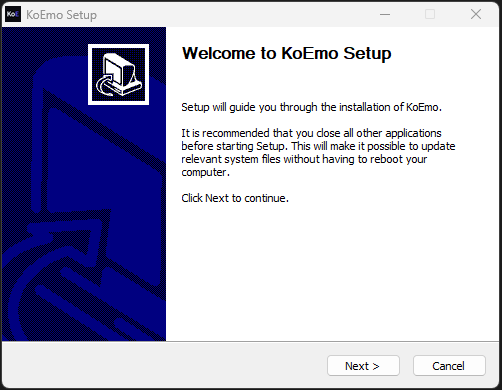
Launch
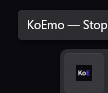
> When you launch KoEmo, an icon appears in the system tray at the bottom-right of your screen.
> The settings window opens automatically. If you can see the icon, you're ready to go.
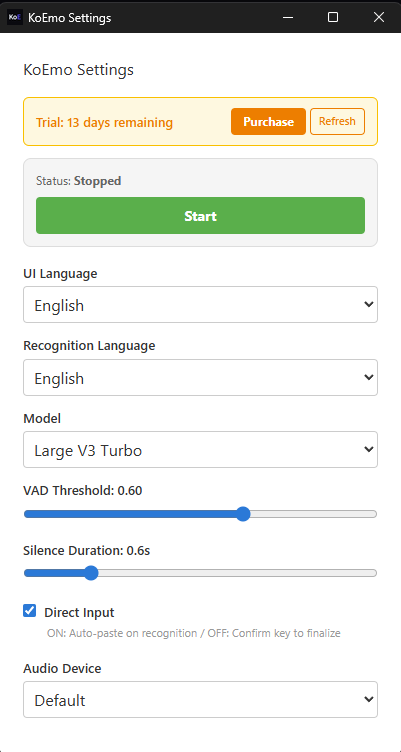
Works right away with default settings. No changes needed.
Voice Input
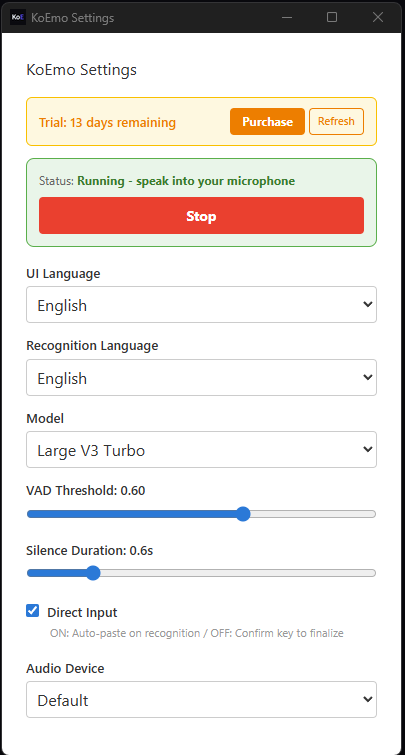
After pressing "Start", the button turns into a red "Stop" button
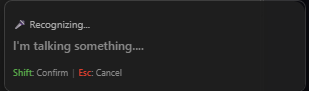
Speak and the overlay shows real-time results
Direct Input
> Step 03 explained the behavior with Direct Input ON (default). Turn it OFF to review results before confirming.
Auto-pastes when you stop speaking. No keyboard needed.
Review the result before confirming. For accuracy.
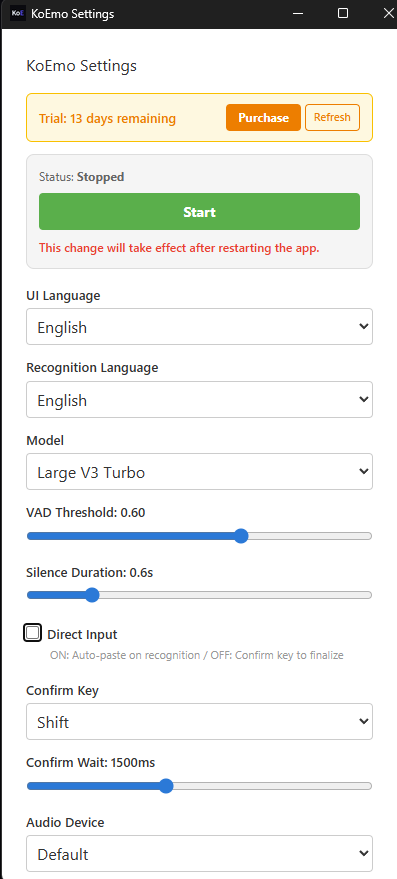
Unchecking Direct Input reveals "Confirm Key" and "Confirm Wait" settings
Keyboard Controls (Direct Input OFF)
When OFF, use these keys to control recognition results.
Recognizing: Shift to confirm / Esc to cancel
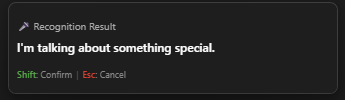
Confirm: Shift to paste / Esc to cancel
Settings
> If recognition isn't working well or gets cut off, try adjusting these two settings.
VAD Threshold
Default: 0.60 Sensitivity of Voice Activity Detection.
KoEmo constantly listens to your mic and uses this value to determine if someone is speaking.
Silence Duration
Default: 0.8s The length of silence before speech is considered finished.
When silence lasts this long, KoEmo finalizes the recognition result.
Tray Menu
> Even after closing the settings window, KoEmo keeps running in the background.
> Right-click the system tray icon to control KoEmo quickly.
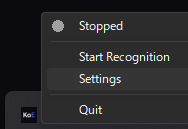
Stopped — Click "Start Recognition" to begin
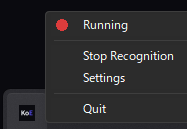
Running — Click "Stop Recognition" to stop
Custom Model (Fine-tuning)
ADVANCED> KoEmo's default model is general-purpose. By training it on your own voice and vocabulary, accuracy for how you actually speak — names, jargon, and phrasing — improves dramatically. Here is the full flow, from collecting data to running your own model.
Turn on data collection
In Settings, enable "Collect training data". From then on, KoEmo saves each utterance — the audio plus its recognized text — locally on your PC.
Use it normally, then curate
Keep using KoEmo as usual to accumulate samples. Open the Training Data window to play them back and delete any wrong ones. Clean data in → accurate model out.
Export your dataset
In the Training Data window, click Export to save everything as a single .zip file.
Order on My Page
Log in at koemo.app, open My Page → Build your custom model, upload the .zip and place your order. Buying KoEmo includes 2 free fine-tunes.
We train your model
We train a model on your data and update the status on your My Page. You don't need to keep the app open — check back later.
Download & apply
When the order shows Completed, download the trained model from My Page. Then in KoEmo's Model Manager, import it as a custom model and select it.
$ troubleshoot
- › Select the correct microphone in "Audio Device" settings
- › Lower the VAD threshold (mic sensitivity) to detect quieter voices
- › Check that your microphone is enabled in Windows Sound Settings
- › Increase the Silence Duration to prevent splitting during pauses
- › Make sure you're not too far from the microphone
- › Click and focus the target app before you start speaking
- › KoEmo pastes into whichever app was focused when speech began
- › Use confirmation mode (Direct Input OFF) to choose from candidates
- › Speak in shorter sentences for better accuracy
- › Using KoEmo in a quiet environment improves recognition